Free Screen Recorder
Screen & webcam recording, built right in
Record your screen, yourself, or your team with one tool. The video lands in Wistia, ready to polish, share, and measure.
Trusted by over 440,000 customers
Hit record
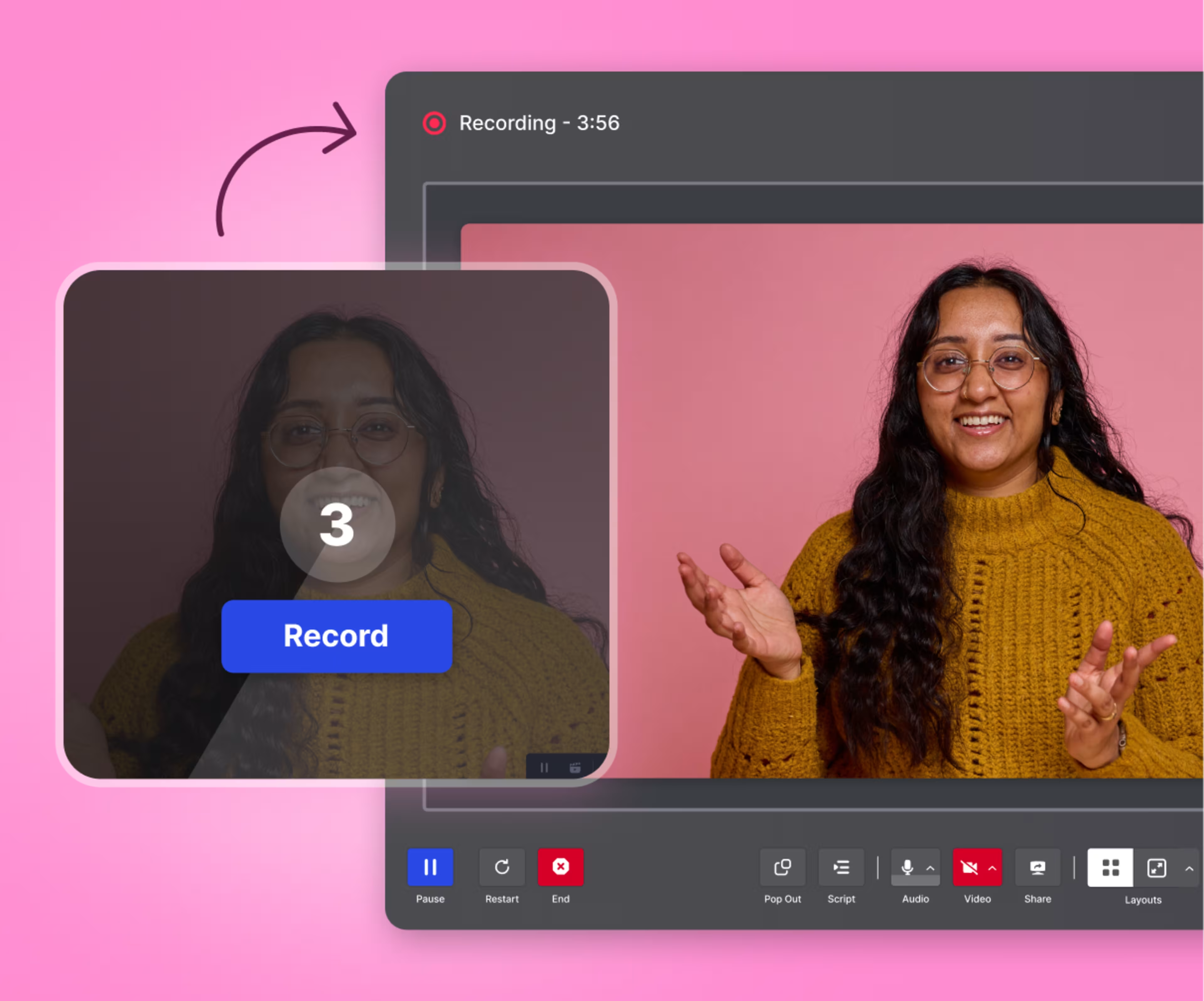
Capture your screen, your camera, or both. Never wonder if you’re recording, courtesy of a quick countdown, clear controls, and a big ’ol pause button.
Polish it up
Trim takes, drop in a custom background, and burn in captions. Clean up audio with one toggle, so you sound like you recorded in a studio, not a spare bedroom.
Share it out
No exports, no uploads. Your video lands in your Wistia library the moment you stop recording. Just give it a title, drop it in a folder, and share it with a link or embed code.
Record from the app
The app lives on your Mac, so recording is one click away.
Edit from the app, too
Done recording? Trim and save without switching tabs.
Share what you made
Your recording lands in Wistia, so you can share it instantly.
Four kinds of videos, one recording tool
Cut your tech stack, not your output.
Product walkthroughs & explainers
No dedicated demo app required. Record your screen and show yourself narrating in the corner. Then, trim the fumbles and publish a walkthrough that folks can watch anytime.
Podcasts
Your remote studio is here. Wistia captures every guest locally, so shaky connections never make their way into an episode. Once you’re done, edit and publish in a snap.
Founder & exec updates
Leadership can do this one themselves. Hit record, say the thing, and it's in front of the company the same day. No production team needed.
Customer stories
Testimonials without the testimonial tool. Send customers a recording link, let them record on their own time, and get a real story without booking a crew or a calendar slot.
Producer-level control
Call all the shots, from who’s on screen to what gets clipped.
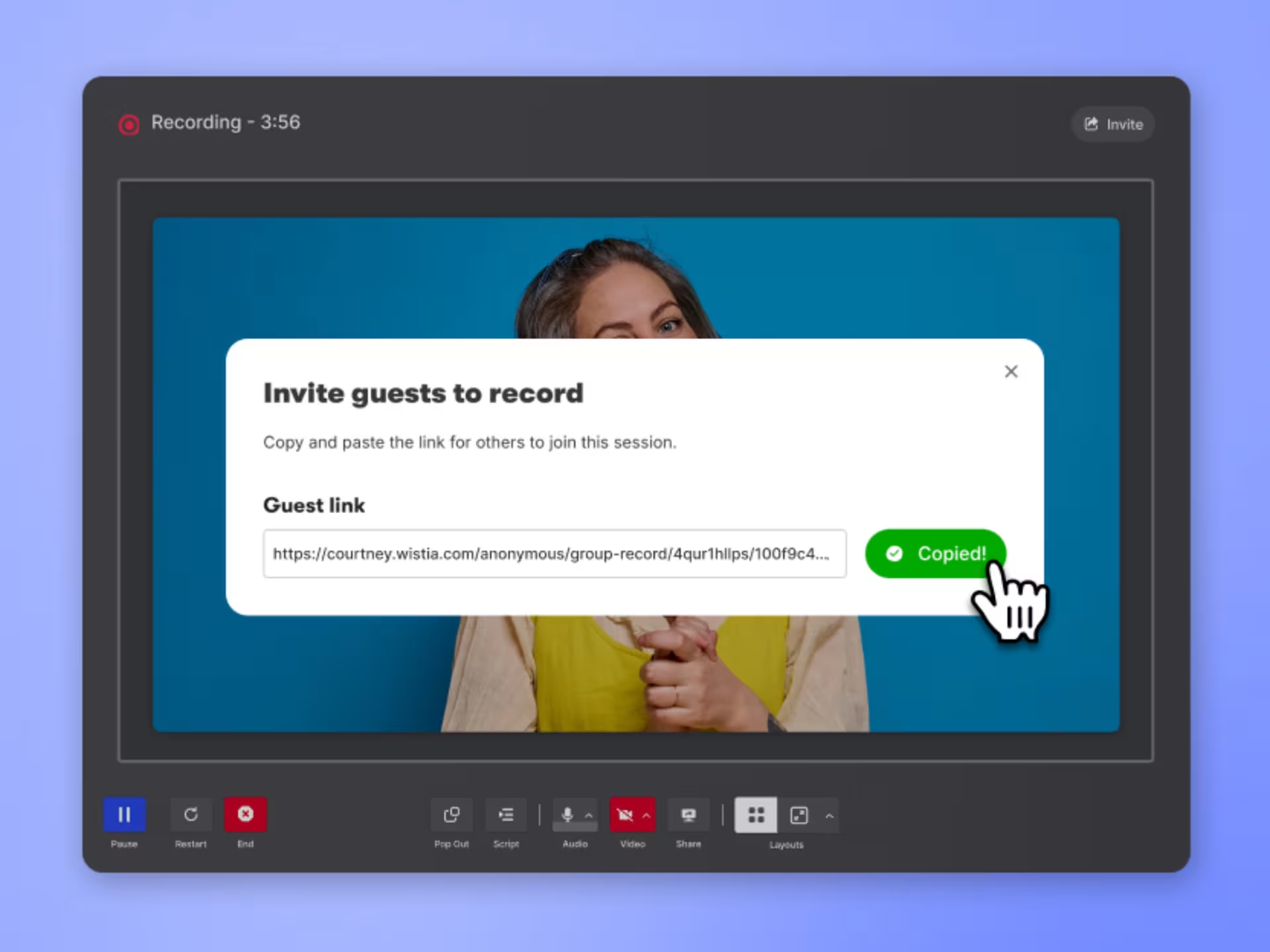
Decide who’s recording
Record solo, or bring your team, your guests, or your customers on screen by sending ‘em a link. Everyone records from wherever they are, and every track lands in the same folder.
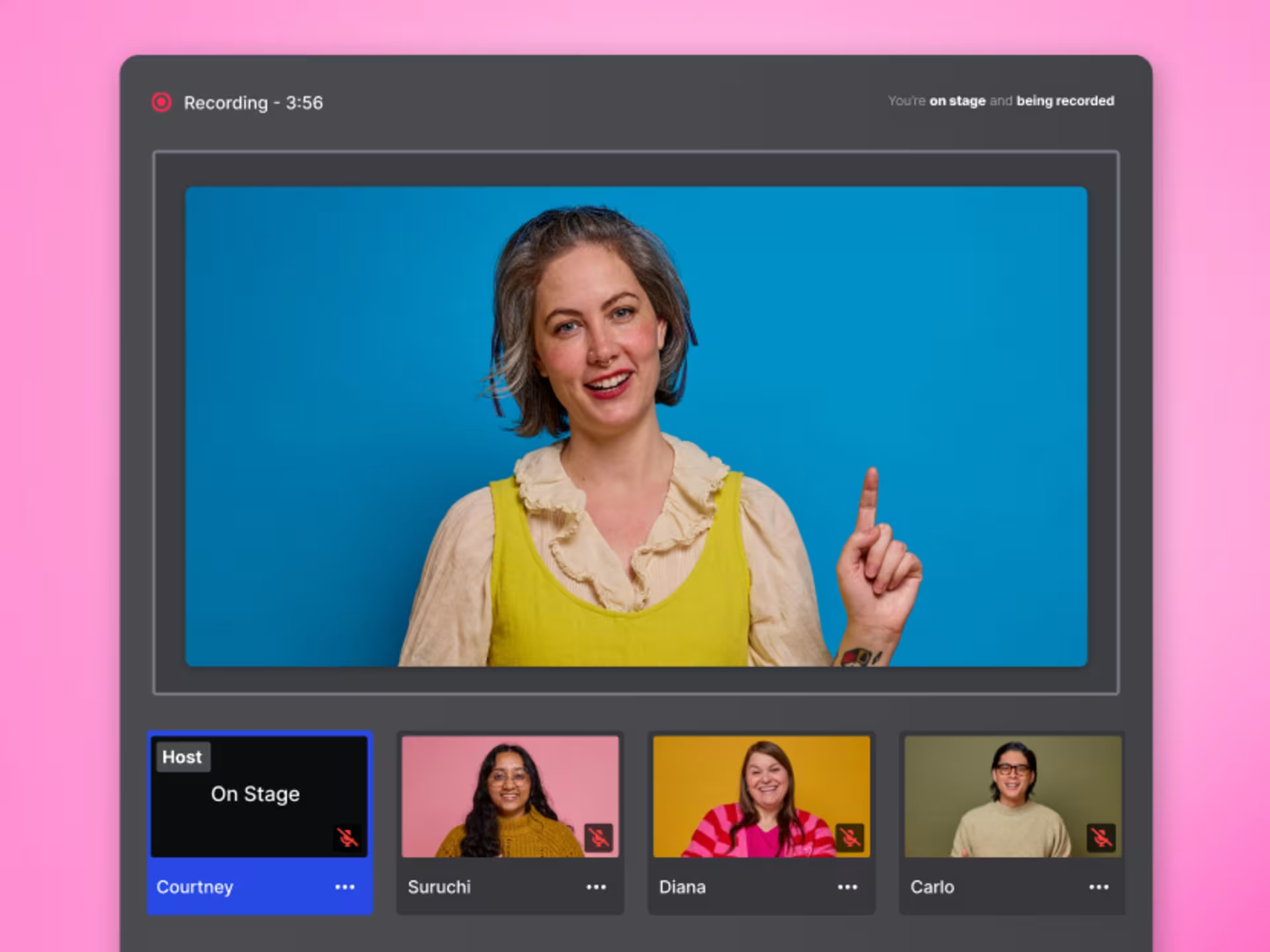
Choose who to spotlight
Hit record and move speakers on and off stage as the conversation flows. Wistia captures each person on their own video track, so you can adjust the layout later instead of getting it perfect live.
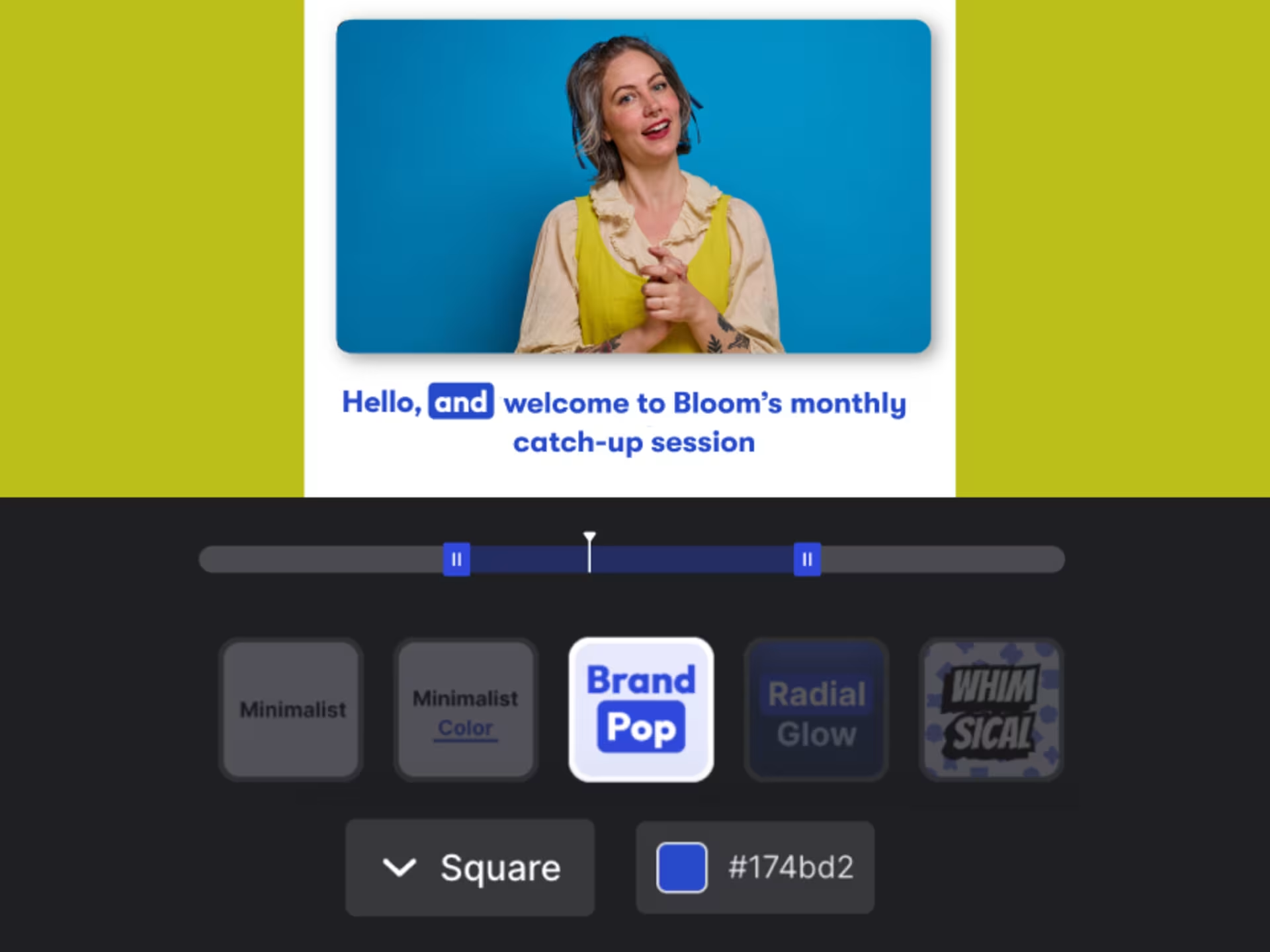
Create social clips
Turn one recording into weeks of posts. AI pulls the highlights, adds stylized captions, and sizes clips for each platform, so you edit less and publish faster.
Ready to record?
Get started for freeSimple, reliable, stress-free
Recording tools anyone can use and everyone can count on.
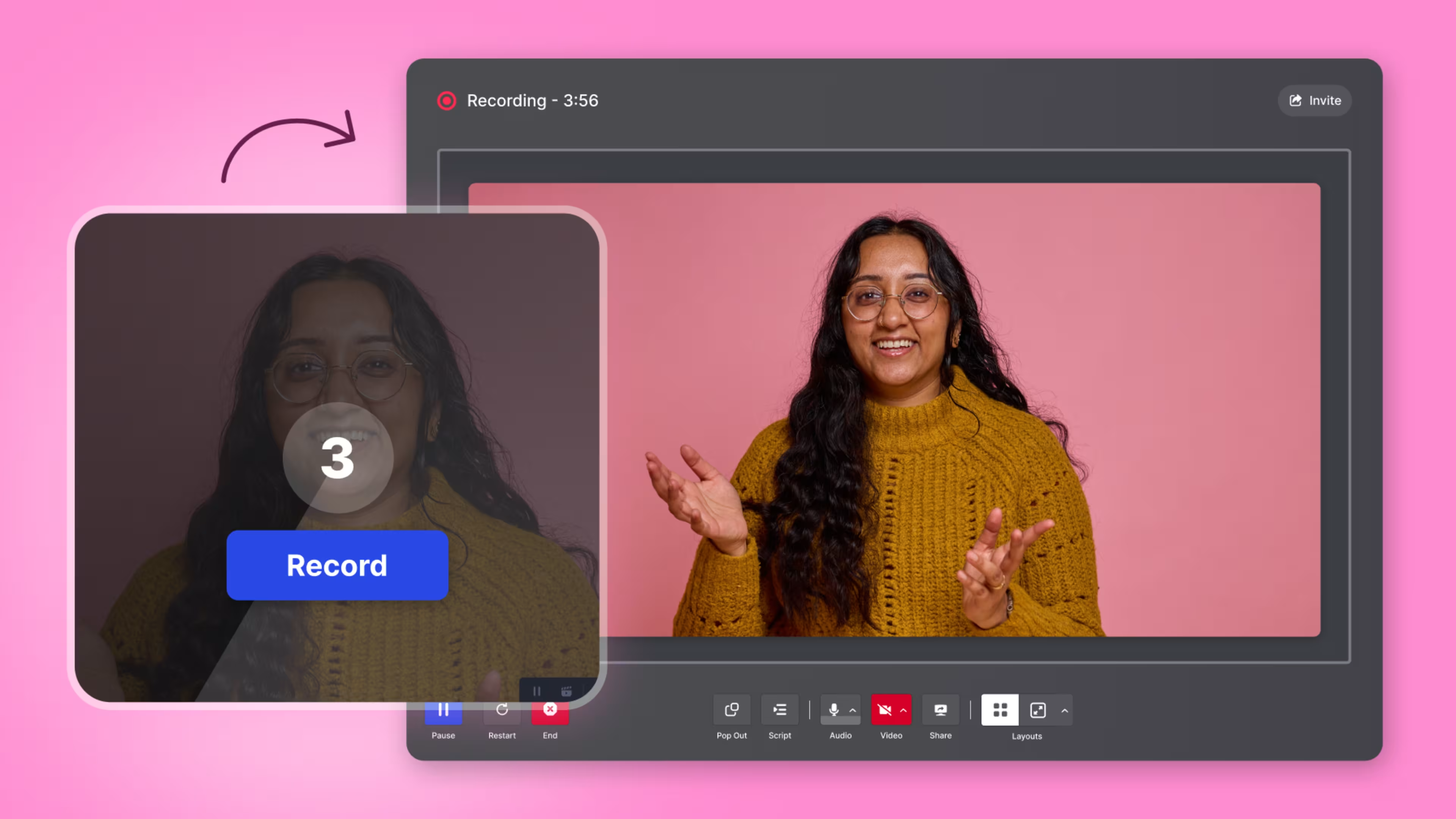
No user manual required
Simple controls let you focus on your message, not the tech. We’re talking big buttons, plain labels, and a countdown before every take.
Double backup
Each track saves locally and backs up to the cloud so it’s always safe, even if a browser crashes or a connection drops mid-sesh.
AI video editing
Timeline scrubbing? So 2025. Cut dead air with the click of a button, flip a toggle to clean up the audio, and create cutdowns with a prompt.
Video recording is just the beginning
We’ve got all the tools you need to squeeze more juice out of your videos.
Management
Store, organize, find, and archive your videos in a jiffy.
Editing
Zhuzhing up your videos has never been easier.
Playback
We designed our player to be fast, customizable, and compatible with any browser or device.
Embedding
Copy and paste our embed code onto your page for reliable playback on any device.
Video galleries
Build an on-brand page for all your content. No coding required.
Wistia forms
Capture leads with branded, in-video forms.
Webinars
Hosting webinars is now a piece of cake. Preferably red velvet.
Video analytics
Get nerdy with key metrics, heatmaps, and A/B testing at your fingertips.
Marketing integrations
Automatically send video data to your favorite marketing tools.
Podcasting
Upload your pod and we’ll distribute it to top directories like Apple and Spotify.
SEO
We automatically optimize your videos for search to get you more views.
Localization
AI dubbing and translations in 50+ languages.
Wistia MCP
Run Wistia from agents like Claude, Cursor, and ChatGPT.
Frequently asked questions
Get all the As to your FAQs.
Can I download separate audio and video tracks?
Yes. Each participant’s audio and video are recorded separately, so you can download speaker tracks for editing or mixing later.
How do I screen record on a Mac with audio?
Open the Wistia desktop app, choose your mic, and hit record. The app captures your screen, your voice, and your computer’s audio automatically—no extra drivers or audio settings to configure. The first time you record, macOS will ask you to allow screen and microphone access in System Settings. You only have to do that once.
Can I download Wistia’s recording app on Windows?
Not yet. Wistia for Desktop is currently available on macOS only for now.
What if someone’s internet connection is bad?
Each person records locally, so a weak connection won’t ruin the recording. If someone freezes or drops, their track keeps recording in the background.
How does Wistia protect my recordings?
Recordings are backed up automatically as they’re captured, and uploaded securely when the session ends, so your files aren’t lost if something goes wrong.
How do I know we’re recording?
Clear visual indicators show when recording is active, so everyone knows exactly when they’re on.
Can I record my screen and camera at the same time?
Yep. You can record your screen, camera, or both together in a single session.
Where does my video go after I’m done recording?
Your recording is saved directly to your Wistia account, ready to review, edit, share, or publish.
Is this just for marketing videos, or does it work for podcasts too?
Both. It’s great for podcasts, interviews, presentations, internal updates, and marketing videos—anywhere clean audio and video matter.